



Enhance Your Gaming Experience with MSI's Gaming Intelligence Software
Elevate Your Gaming Experience with MSI Gaming Intelligence
MSI has long been a trusted name in the gaming community, known for its innovative technology and exceptional performance in PC hardware. One of their standout offerings is the MSI Gaming Intelligence (G.I.) software, designed to enhance the user experience by allowing seamless control of monitor settings through mouse and keyboard inputs. Forget about fumbling with physical buttons on your monitor; G.I. enables users to adjust display settings intuitively without needing to navigate through cumbersome on-screen menus.
What is Gaming Intelligence?
To fully benefit from the powerful features of MSI’s Gaming Intelligence, simply connect your monitor to your PC using a USB cable along with either HDMI or DP cable. Once set up, users gain access to an extensive array of customizable settings that enhance their overall gaming experience. This software offers a streamlined interface, but keep in mind that features may vary depending on the specific product version you are using.
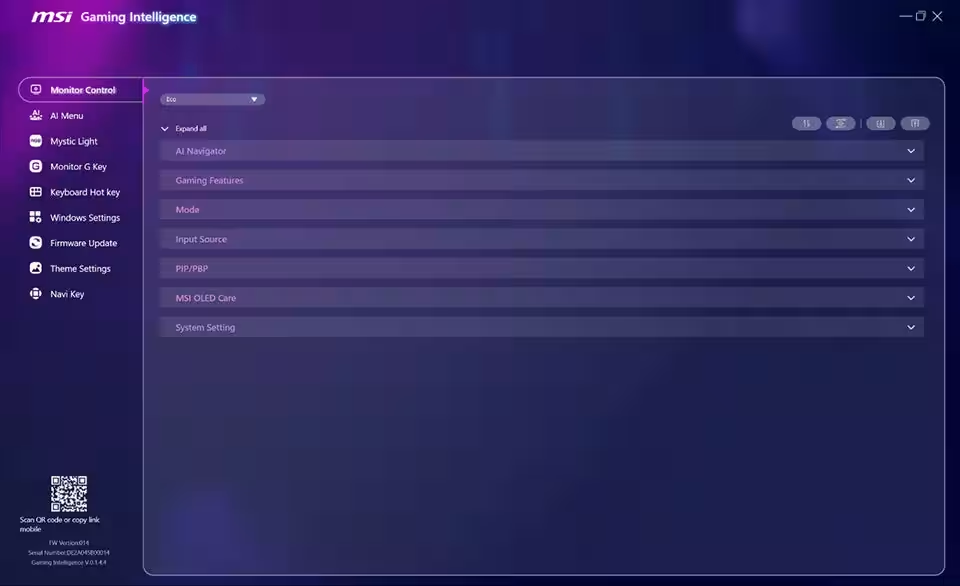
One of the software's key functionalities is the "Collapse All" feature, which allows users to declutter the interface, making it much easier to find particular settings when needed. This simple yet effective feature improves user experience exponentially.
Monitor Control: Quick Preset Switching
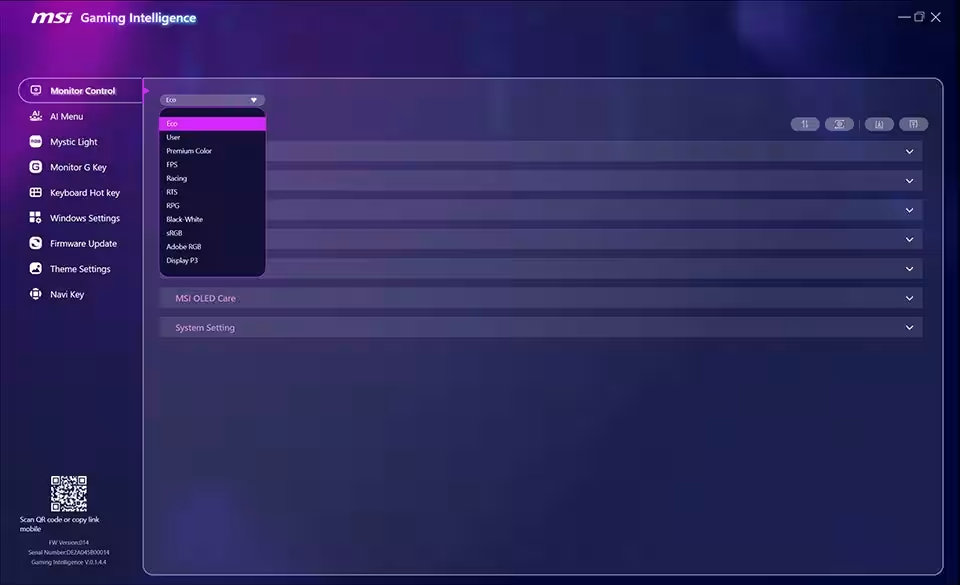
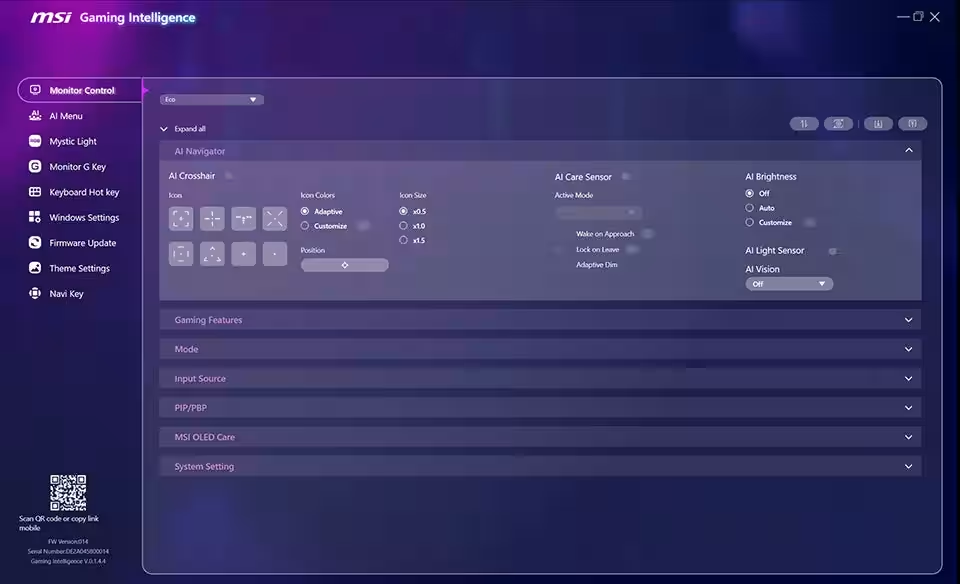
The "Monitor Control" feature of MSI’s G.I. enhances gameplay by enabling quick switches between preset modes tailored to current activities. Users can select from various modes such as Eco, User, FPS, or Racing, ensuring optimal settings for different types of games.
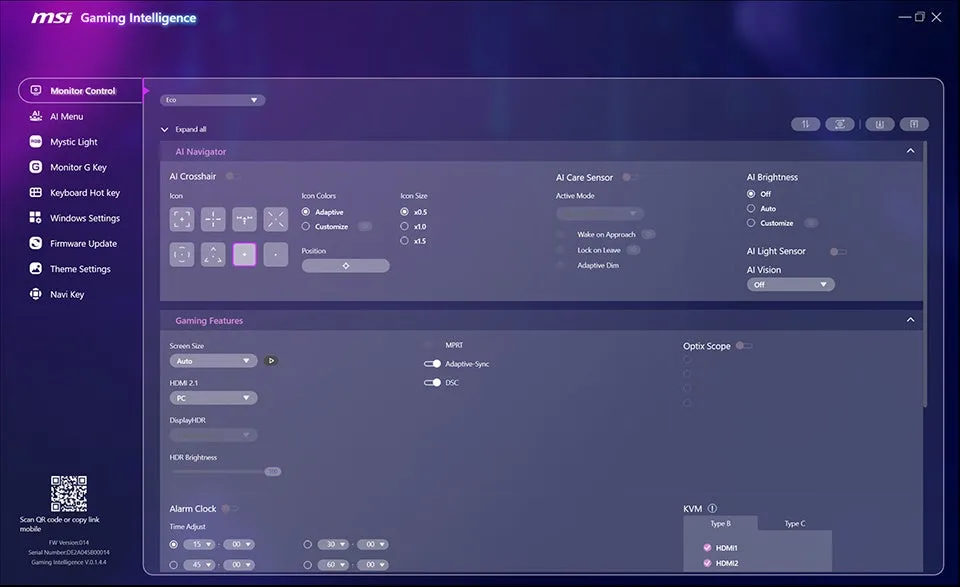
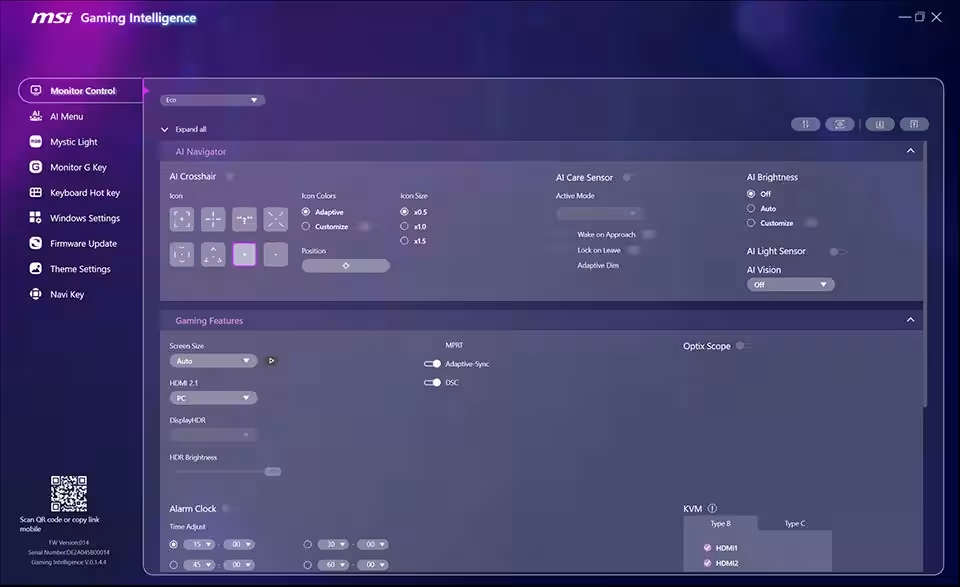
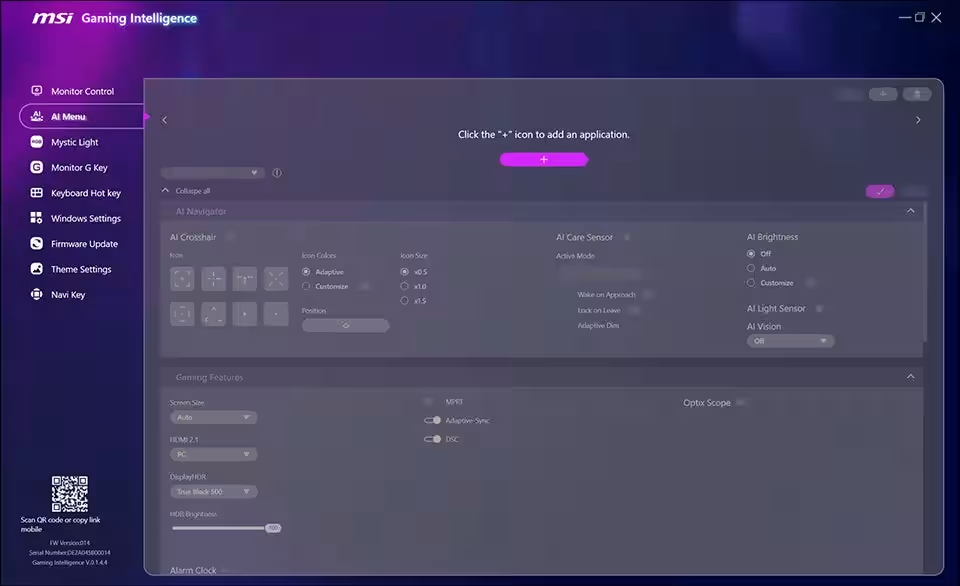
Within the Monitor Control section lies the "AI Navigator" feature. This allows for customization of crosshair icons in games based on color, size, and position, providing personalized gameplay enhancements. Additionally, enabling options like AI Care Sensor, AI Brightness, and AI Light Sensors can reduce the risk of OLED panel burn-in, optimizing your viewing experience.
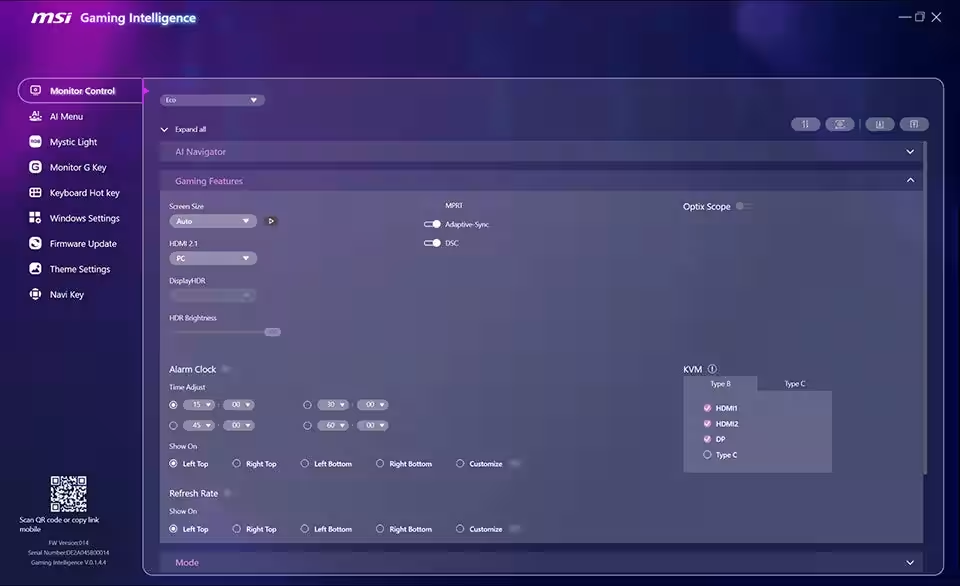
The Gaming Features section integrates multiple settings, including screen size adjustments, HDR mode options, VRR, and an array of dashboard settings like refresh rates or alarms. Impressively, with the built-in KVM settings, users can control two different systems using a single keyboard and mouse, making multitasking incredibly efficient.
Custom Image Settings
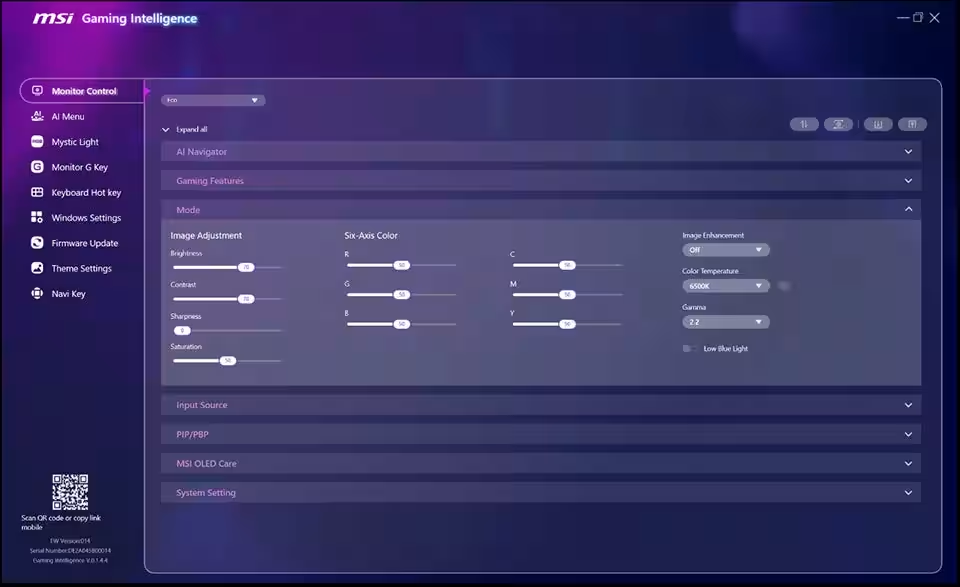
In the "Mode" section, users can adjust image settings such as brightness, contrast, sharpness, and image enhancement according to their preference. For those working with SDR content, professional-grade color calibration is achievable through a six-axis color adjustment feature, adding a further layer of customization.
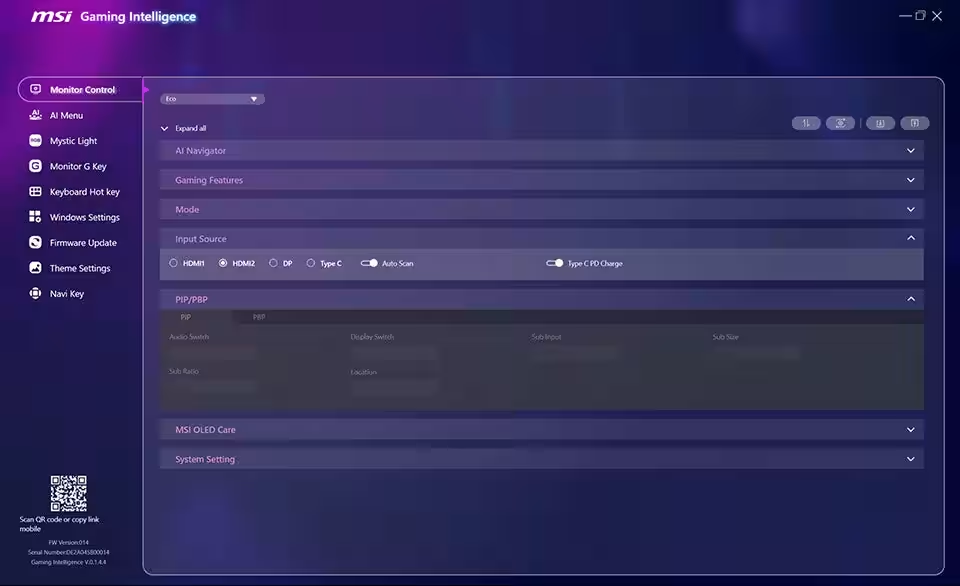
With the PIP/PBP functionality, managing multi-screen layouts becomes a breeze. Users can switch audio and display sources as well as customize window sizes and positions across multiple applications—all without changing the OSD menu.
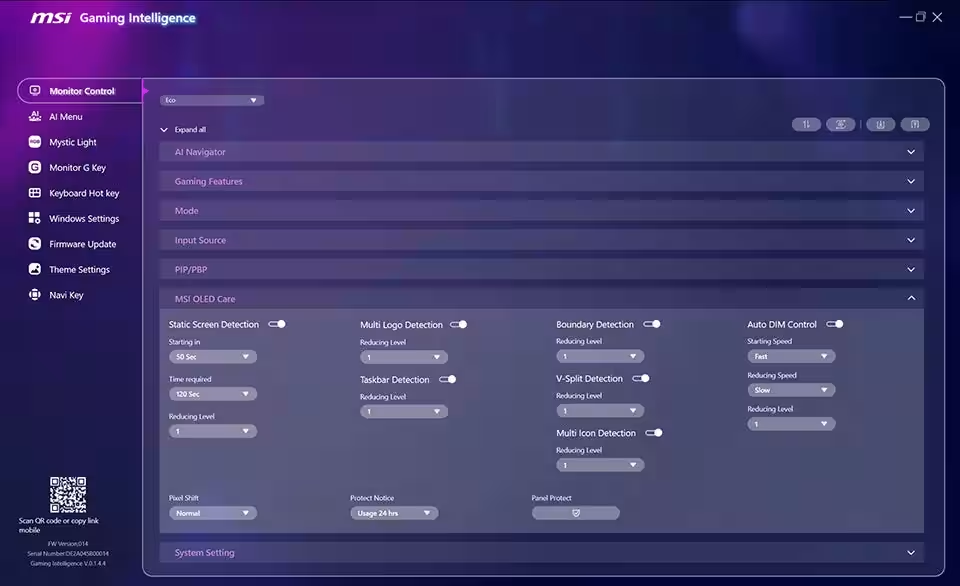
MSI also introduces a set of protective mechanisms within the OLED Care function that balances the lifespan of OLED panels with necessary protection against burn-in risks.
System Settings and Convenience Features
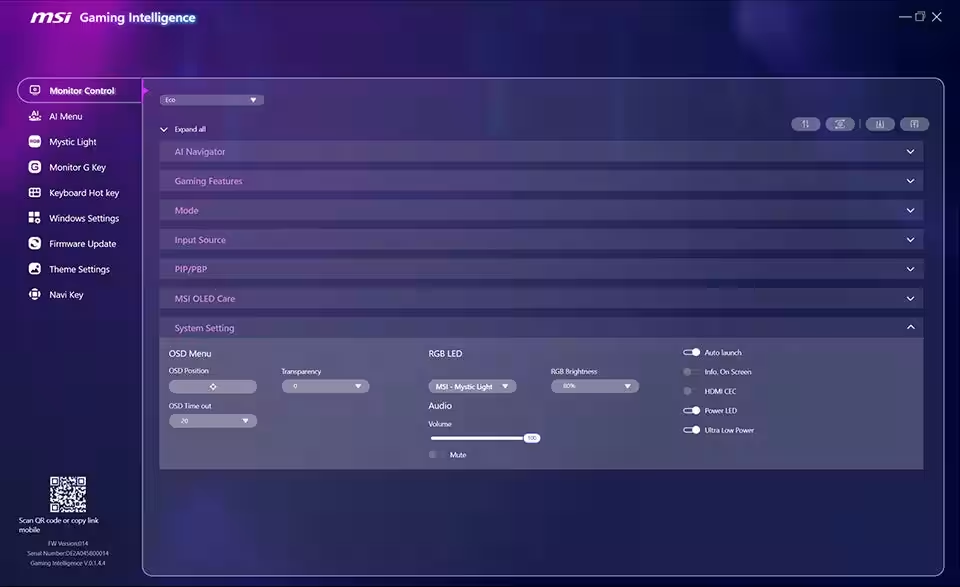
The System Settings section is packed with several handy features, including HDMI CEC technology. This functionality allows the monitor to communicate with the controller, offering users the ability to wake the monitor or adjust modes tailored to the connected device directly.
AI Menu: Personalized Application Display Modes
AI Menu offers quite a handy setting that defines specific display modes for individual applications. Once configured, Gaming Intelligence will automatically switch to the assigned preset mode whenever users alternate between applications, allowing for a smoother workflow.
Mystic Light: Customize Your Gaming Aesthetic
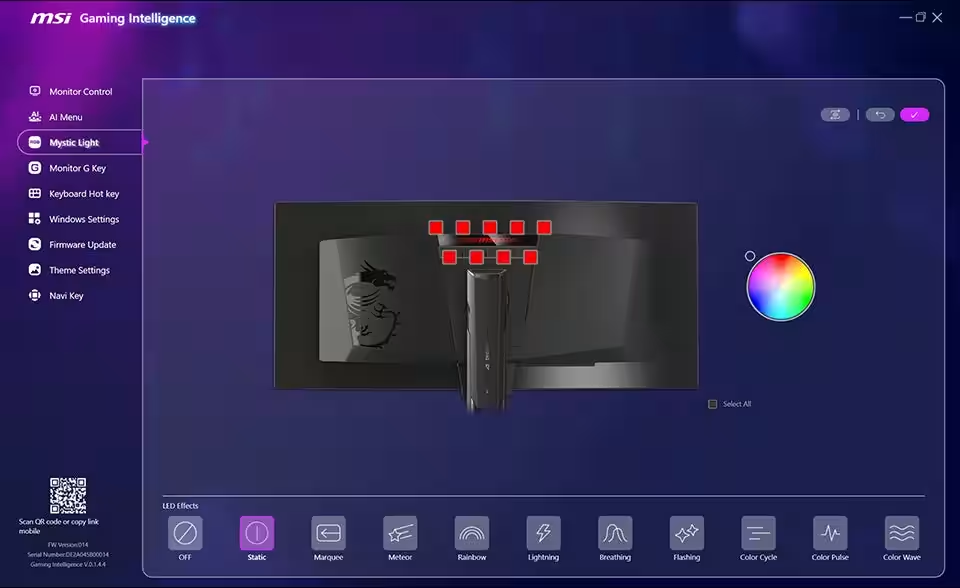
For monitors equipped with RGB lighting, G.I. includes the customizable Mystic Light feature, enabling personal color and LED effects that match the user's aesthetic while gaming.
Hotkey Settings: Control at Your Fingertips
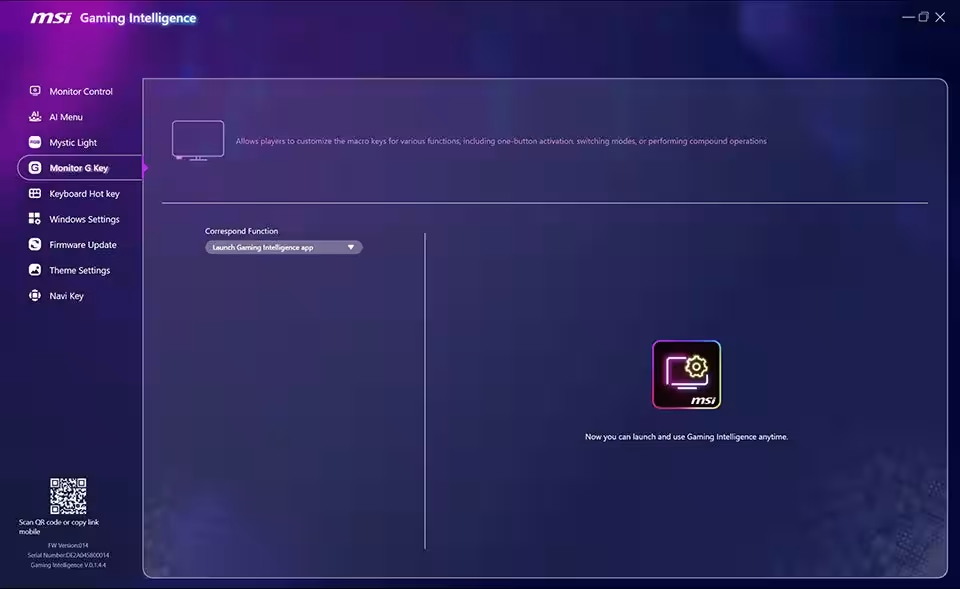
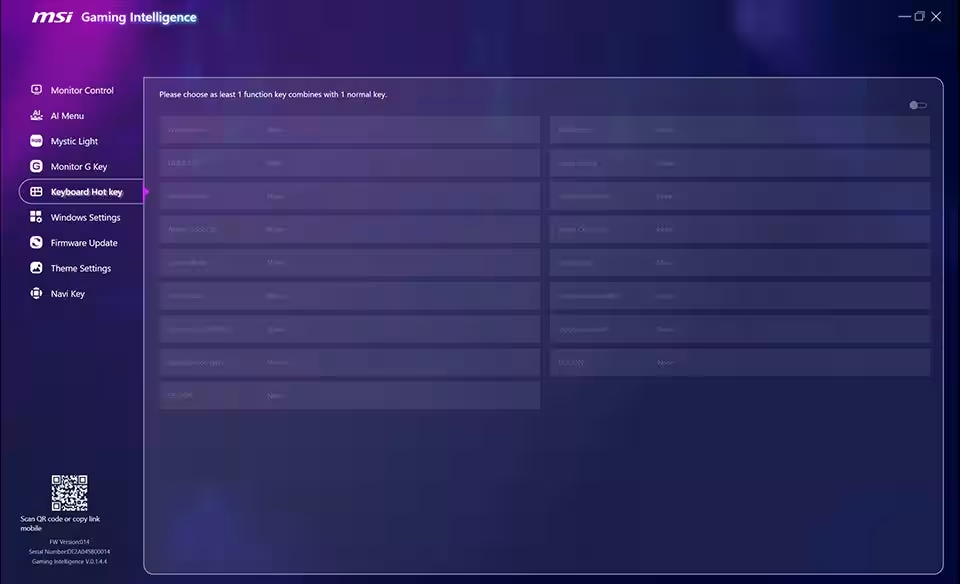
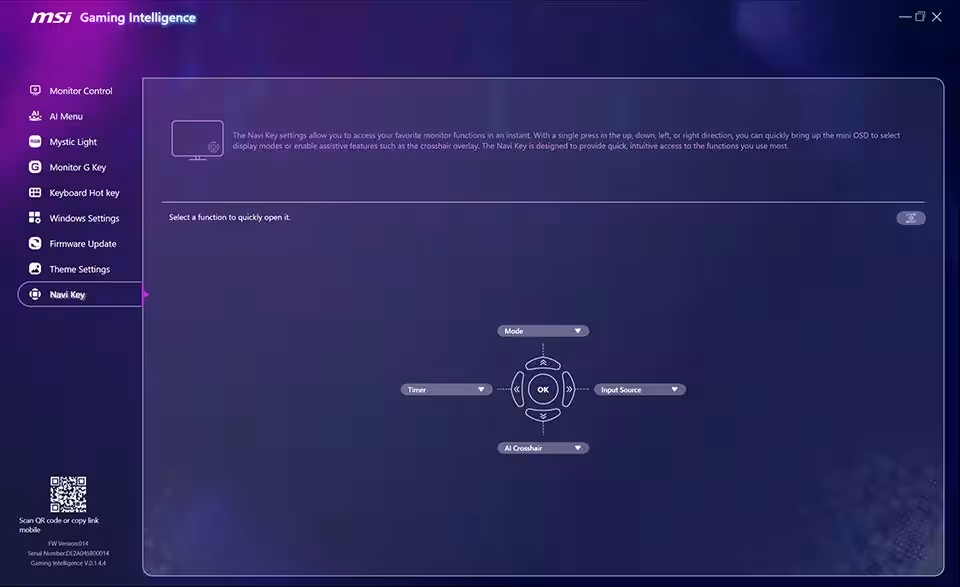
For gamers and heavy application users, assigning shortcut functions to specific keys on the keyboard can significantly enhance usability. G.I. provides options such as "Monitor G Key," "Keyboard Hot Key," and "Navi Key" for quick mode switches and crosshair activations without interruptions to gameplay.
Windows Settings and Firmware Updates
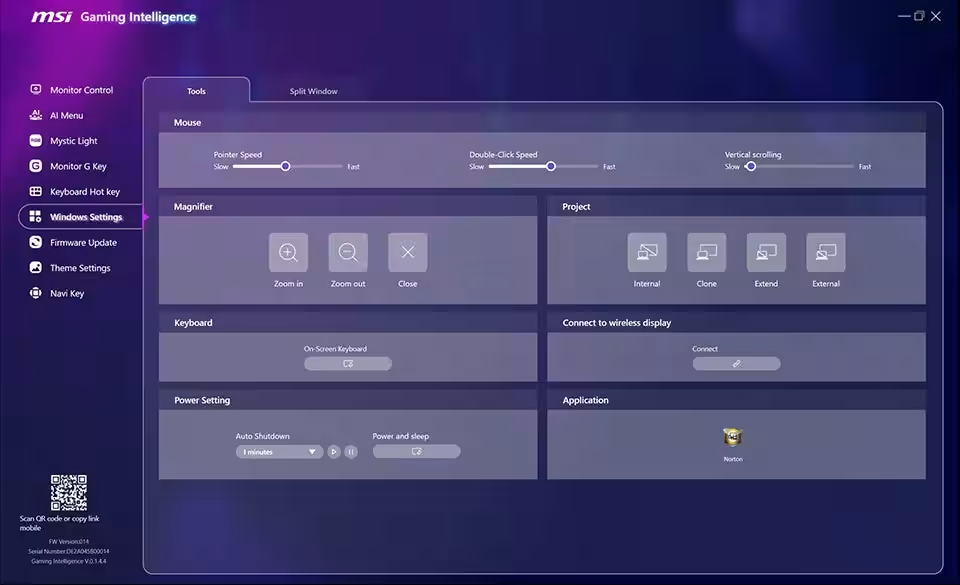
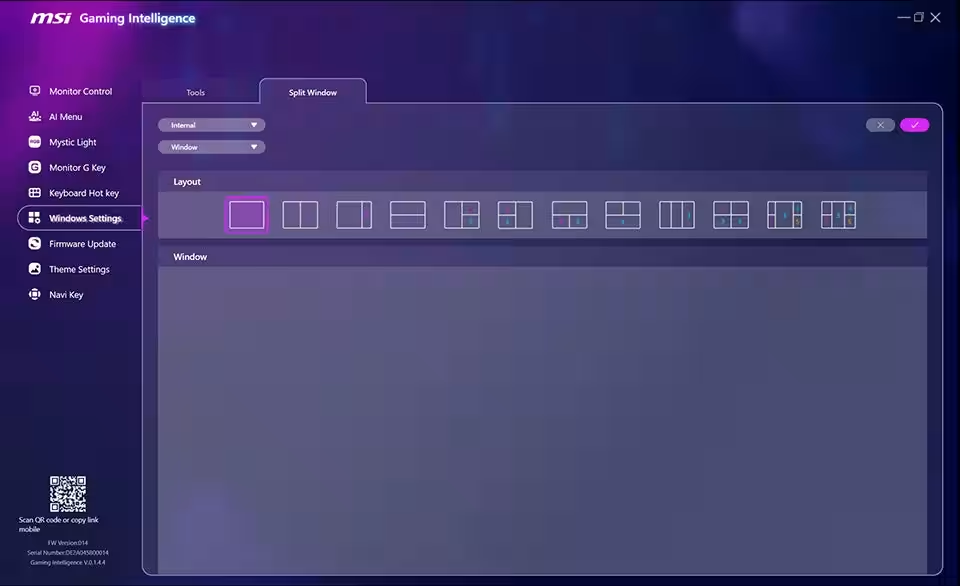
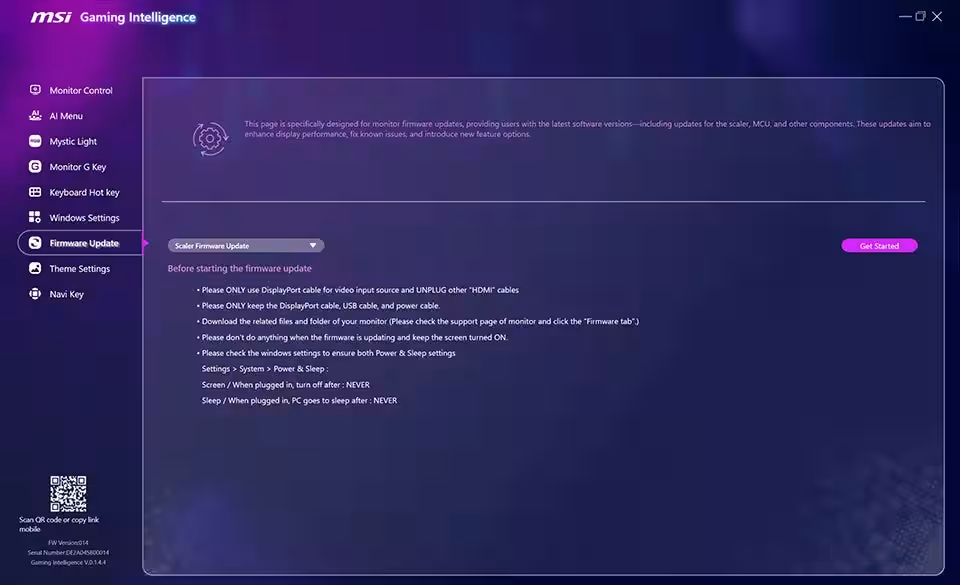
Moreover, MSI Gaming Intelligence integrates various Windows settings such as mouse speed, magnifier, and window snapping, creating a more comprehensive PC management experience. The firmware update feature is crucial for ensuring your monitor is always equipped with the latest functionalities and performance improvements. Users can refer to the MSI Monitor Firmware Upgrade Guide for assistance.
Personalizing the User Interface
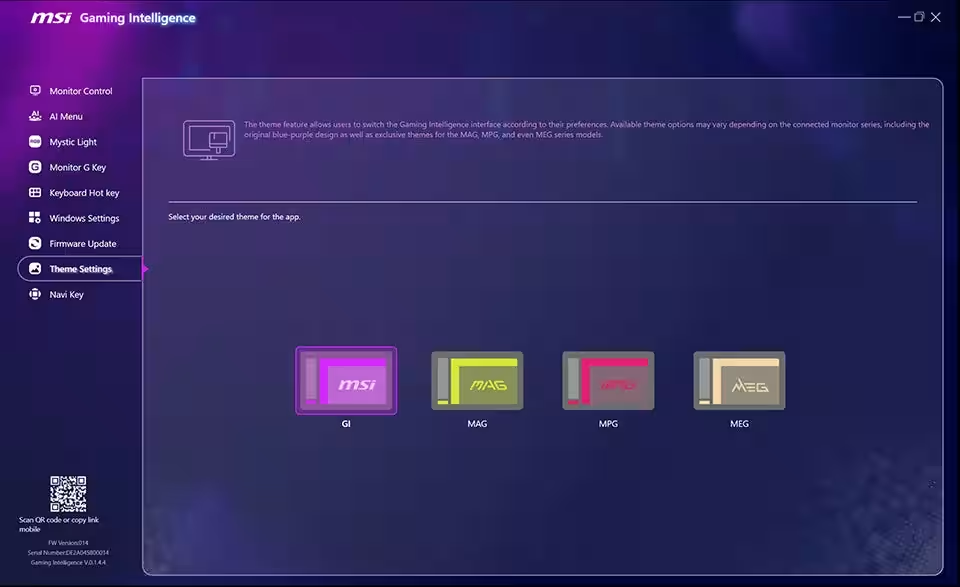
Lastly, the Theme Settings allow users to personalize the G.I. interface according to their preferences. With its advanced capabilities all in one accessible tool, MSI Gaming Intelligence is indeed an essential software for every gamer looking to optimize their gaming experience.
For more details, you can view the tutorial video here.
Note: The features displayed may vary depending on the products used, and the design may differ based on the software version. Always refer to your specific version for accurate information.
Topics Consumer Products & Retail)
【About Using Articles】
You can freely use the title and article content by linking to the page where the article is posted.
※ Images cannot be used.
【About Links】
Links are free to use.